ip
Seb User Guide
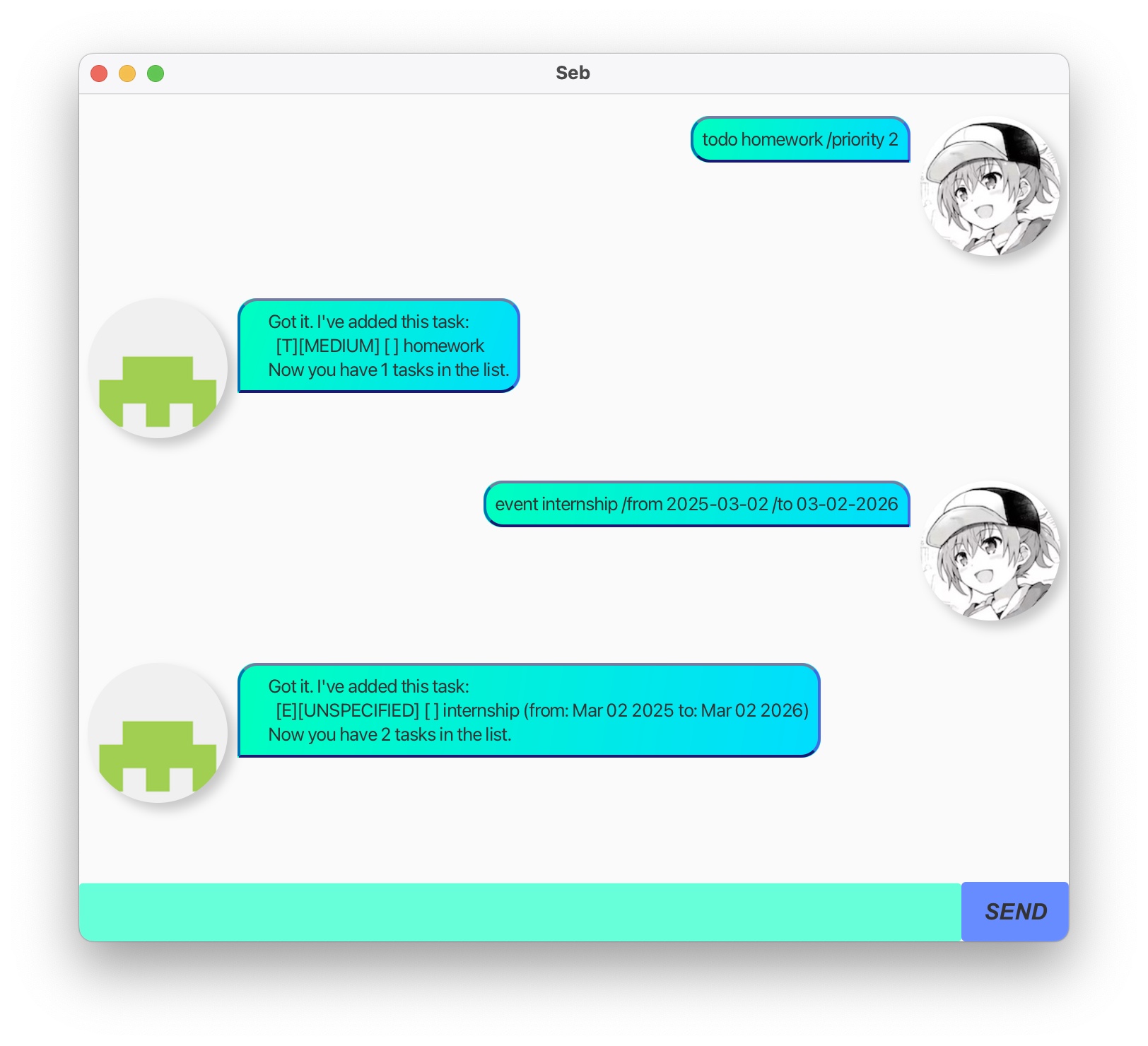
Seb is a task management bot that helps you keep track of your tasks efficiently. It is optimized for both CLI while still has GUI usage.
It supports 3 types of tasks: TODO, DEADLINE and EVENT.
You can add, delete, mark/unmark tasks, view task list, find tasks by keywords and manage priorities of tasks.
Table of Contents
Getting Started
- Download the latest version of Seb from the repository.
- Ensure you have Java 17 or above installed on your machine. If you are using MacOS, please follow this guide.
- Run the application using the command:
java -jar seb.jar.
Say Hi to Seb
Input Syntax: hi or hello (independent of case).
Expected Outcome: Seb will greet you with a welcome message.
Hello! I'm Seb.
What can I do for you?
Bye Seb
Input Syntax: bye (independent of case).
Expected Outcome: Seb will bid you farewell and terminate the session.
- In GUI:
Bye! See you soon. - In CLI:
Bye. Hope to see you again soon!
Adding tasks
All examples assume empty task list at the start.
Adding TODOS
Input Syntax: todo <task_description> [/priority <level>]
Example: todo Buy groceries /priority 1
Expected Outcome: Seb will add a TODO task with the specified description and priority level.
Got it. I've added this task:
    [T][LOW][ ] Buy groceries (priority: LOW)
Now you have 1 task in the list.
[!NOTE] Priority levels:
- 1: LOW
- 2: MEDIUM
- 3: HIGH
- Any other value: UNSPECIFIED
Adding DEADLINES
Input Syntax: deadline <task_description> /by <due_date> [/priority <level>]
Example: deadline Submit report /by 2025-10-01 /priority 2
Expected Outcome: Seb will add a DEADLINE task with the specified description, due date, and priority level.
Got it. I've added this task:
    [D][MEDIUM][ ] Submit report (by: Oct 1 2025)
Now you have 2 tasks in the list.
[!NOTE] Date format for DEADLINE and EVENT tasks can be in one of the following formats:
- case1:
YYYY-MM-DD(e.g.,2025-10-01).- case2:
MM-DD-YYYY(e.g.,10-01-2025)- case3:
DD-MM-YYYY(e.g.,01-10-2025)\
If both case2 and case3 are used, Seb will interpret the date as case2.
In current version, whatever input is supported as due_date. If it match the 3 cases above, Seb will store it as a date. Otherwise, it will be stored as a string.
Adding EVENTS
Input Syntax: event <task_description> /from <start_date> /to <end_date> [/priority <level>]
Example: event Exercise /from 2025-10-01 /to 2025-10-05 /priority 2
Expected Outcome: Seb will add an EVENT task with the specified description, start date, end date, and priority level.
Got it. I've added this task:
    [E][MEDIUM][ ] Exercise (from: Oct 1 2025 to: Oct 5 2025)
Now you have 3 tasks in the list.
Managing tasks
Viewing tasks
Input Syntax: list
Expected Outcome: Seb will display all tasks in the list with their details.
Here are the tasks in your list:
    1.[T][LOW][ ] Buy groceries
    2.[D][MEDIUM][ ] Submit report (by: Oct 1 2025)
    3.[E][MEDIUM][ ] Exercise (from: Oct 1 2025 to: Oct 5 2025)
Marking/unmarking tasks
Input Syntax: mark <task_index> or unmark <task_index>
Example: mark 2 or unmark 2
Expected Outcome: Seb will mark or unmark the specified task as completed or not completed.
Nice! I've marked this task as done:
    [D][MEDIUM][X] Submit report (by: Oct 1 2025)
or
OK, I've marked this task as not done yet:
    [D][MEDIUM][ ] Submit report (by: Oct 1 2025)
Finding tasks
Input Syntax: find <keyword>
Example: find report
Expected Outcome: Seb will display all tasks that contain the specified keyword in their description.
Here are the matching tasks in your list:
    1.[D][MEDIUM][ ] Submit report (by: Oct 1 2025)
Setting task priority
Input Syntax: priority <task_index> <level>
Example: priority 1 3
Expected Outcome: Seb will update the priority level of the specified task.
Set priority of tasks 3 to HIGH.
Deleting tasks
Input Syntax: delete <task_index>
Example: delete 2
Expected Outcome: Seb will remove the specified task from your list.
Noted. I've removed this task:
    [D][MEDIUM][ ] Submit report (by: Oct 1 2025)
Now you have 2 tasks in the list.
Error handling
Seb will notify you if your input is invalid or if a command cannot be processed.
Examples:
- Invalid command:
OOPS!!! I'm just a chatbot. I can only handle task schedule right now. - Add deadline/event without date:
OOPS!!! The description of a deadline/event is not correct. | for todo, use todo (description) | for deadline, use deadline (description) /by (time) | for event, use event (description) /from (time) /to (time) - Command start with “mark”, “unmark”, “delete” but without index or invalid index:
Invalid (mark/unmark/delete) command format - Invalid index for mark/unmark/delete/priority:
OOPS!!! Invalid index number. - Invalid task type stored in storage:
(Invalid task type name) is invalid task type. Choose from TODO, DEADLINE, EVENT - Error when storage file exist but cannot be read:
Error reading file: (IOException message) - Error when loading an entry from storage file:
This indicates that this entry will no longer be in real storage in runtime.Warning: Problem loading task: (line) - Error writing to storage file:
Note that this error is very unlikely to happen as Seb will create the file if it does not exist.Error writing to file: (IOException message) - Priority level not in 1, 2, 3:
Invalid priority value. Setting to UNSPECIFIEDP.
Tips
- You can use the UI to interact with Seb or use the command line.
- Priority is optional for all tasks; if omitted, it defaults to UNSPECIFIED.
- Dates is flexible, but using the specified formats is recommended for consistency.
- Task indices start from 1 in the displayed list.
Hope you enjoy using Seb to manage your tasks! o_0